Switching to your headset mic automatically
(On Linux and PipeWire)
tl;dr: Save the file at the bottom of this post as ~/.config/alsa-card-profile/paths/analog-input-headset-mic.conf, then run systemctl restart --user wireplumber. Done!
Here’s some more background:
Since I got my Framework 13, I had an annoying problem: When I plug in my headset, it doesn’t switch to the headset microphone automatically – I have to manually select the “Headset Microphone” port in the pavucontrol GUI to activate it:
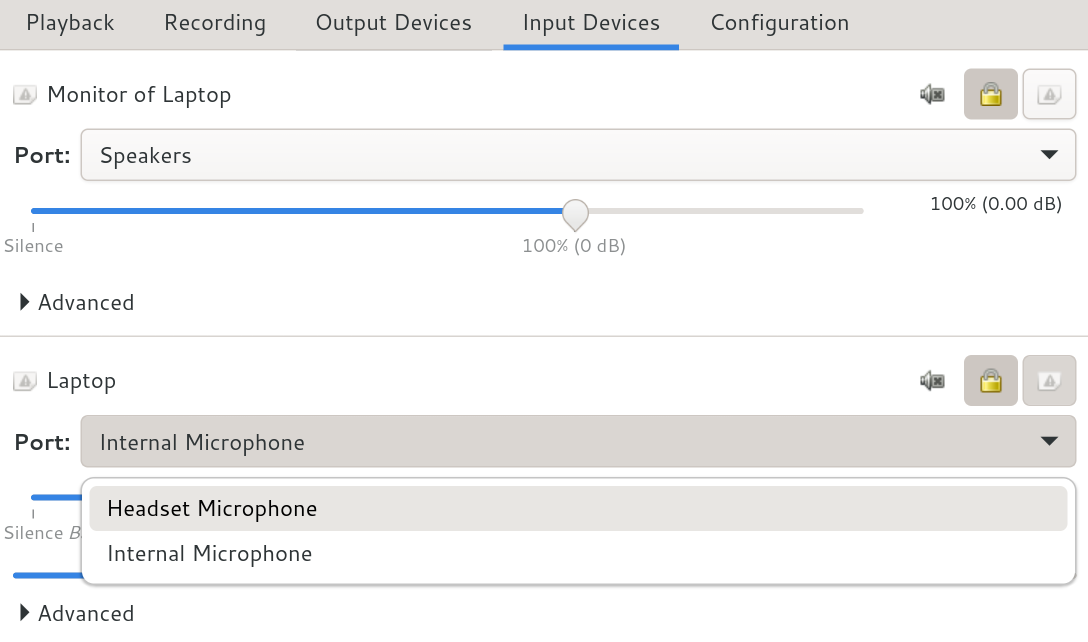
I’d really like it if the headset microphone was activated automatically! Turns out that some other people also would like that, as well.
The reason that the switch doesn’t happen is that the Framework hardware can’t tell whether you just plugged in headphones or a headset (with a microphone).
I investigated a bit more, and found a workaround! For context, I’m running PipeWire (with WirePlumber) on a Framework 13 laptop, but I think the solution should work on other deivces, as well?
Why the headset microphone is not switched to automatically?
By running pw-dump, you can get in-depth information on the current PipeWire status. You can find the two problematic ports (PipeWire calls them “routes”) as part of an EnumRoute:
$ pw-dump
...
"EnumRoute": [
  {
    "index": 0,
    "direction": "Input",
    "name": "analog-input-internal-mic",
    "description": "Internal Microphone",
    "priority": 8900,
    ...
  },
  {
    "index": 1,
    "direction": "Input",
    "name": "analog-input-headset-mic",
    "description": "Headset Microphone",
    "priority": 8800,
    ...
  },
  ...
]
...
Aha: The Internal Microphone has a higher priority than the Headset Microphone! So that’s why the headset microphone is not switched to.
Where do these priorities come from?
PipeWire uses a system called “Alsa Card Profiles” connect the correct Alsa devices to the PipeWire devices.
These two files are part of PipeWire, and describe the internal mic and the headset mic:
They set the internal mic priority to “89” and the headset mic priority to “88”! That’s not what we want…
Idea: Change these files directly?
You could directly make changes to these files, and change the priorities. On some Linux distributions, you might be able to find the files in /usr/share/alsa-card-profile/mixer/paths/.
This would probably work, but there are two problems:
- When updating the PipeWire packages, these files might get overwritten.
- On NixOS (or other operating systems following a similar model), the files are read-only.
Solution: Override these files!
Fortunately, there’s a better solution: Reading the man page pipewire-props, I learned that you can put your own Alsa Card Profiles in ~/.config/alsa-card-profile/path/, and they will override the default behavior!
So if you copy the analog-input-headset-mic.conf there, and change the priority to 90, and then restart WirePlumber using systemctl restart --user wireplumber, your headset microphone will always be switched to automatically as soon as you plug in the headset! Yay!
Below, you will find a “minimal” version of the profile for my Framework 13, which I heavily commented to explain how it works.
# This is an alsa-card-profile configuration for the headset microphone.

# Place it in ~/.config/alsa-card-profile/paths/analog-input-headset-mic.conf,
# and it will be picked up by WirePlumber (restart it using `systemctl
# restart --user wireplumber`).

[General]

# Set the priority of this headset microphone to 90, so that it wins over
# the internal microphone (which has priority = 89).
priority = 90

# Default translatable label for headset microphones:
description-key = analog-input-microphone-headset

# If the ALSA jack called "Headphone" is 'on'...
[Jack Headphone]

# ...show this device as plugged-in.
state.plugged = yes
# (You can check the status yourself using the command `amixer -c 1 cget
# iface=CARD,name='Headphone Jack'`.)

# The following sections define how different ALSA volume sliders
# (called "elements") should be controlled.
# You can see them being adjusted by running `alsamixer -c 1 -V capture`.

[Element Headset Mic]

# Switch this element on if we activate this device.
switch = on

[Element Capture]

# Mute this element if we mute the device...
switch = mute

# ...and if we set a volume of under 50% on the device, adjust the volume
# of this element.
volume = merge

[Element Headset Mic Boost]

# If we set a volume of over 50% on the device, start raising the level
# of this element, as well.
volume = merge
If this profile doesn’t work for you, most likely your ALSA devices have different names. You can check using alsamixer.
Hoping this is helpful for some people! :) For my part, I’ve been enjoying the automated switching in every video conference I’ve had since I figured this out!
You might like the Recurse Center, a kind & curious programming community!