Switching to your headset mic automatically
tl;dr: Save the file at the bottom of this post as ~/.config/alsa-card-profile/paths/analog-input-headset-mic.conf, then run systemctl restart --user wireplumber. Done!
Here’s some more background:
Since I got my Framework 13, I had an annoying problem: When I plug in my headset, it doesn’t switch to the headset microphone automatically – I have to manually select the “Headset Microphone” port in the pavucontrol GUI to activate it:
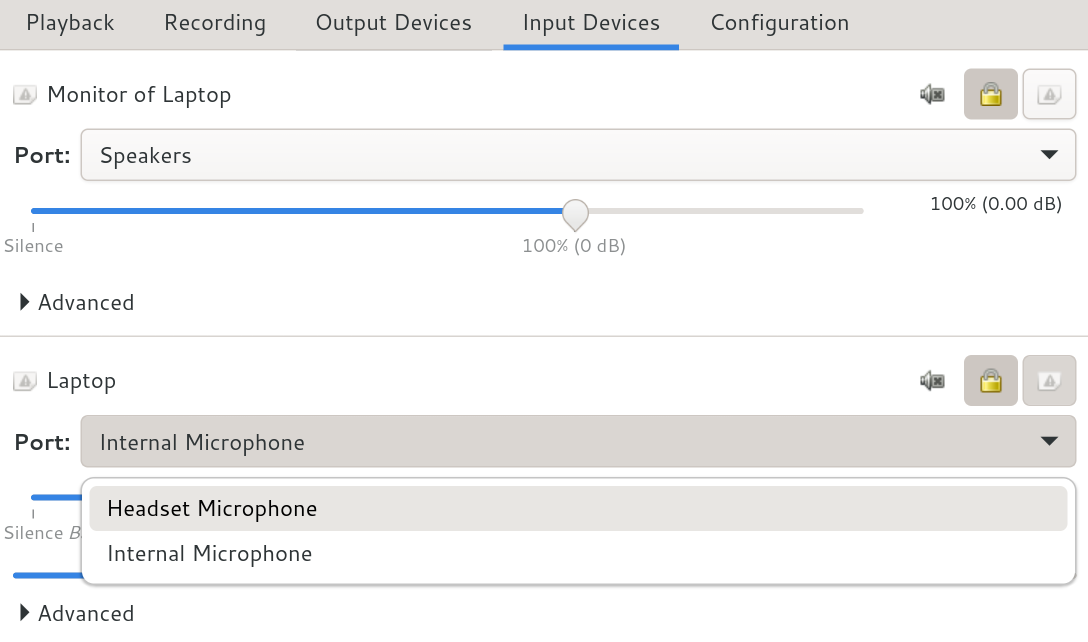
I’d really like it if the headset microphone was activated automatically! Turns out that some other people also would like that, as well.
I investigated a bit more, and found a workaround! For context, I’m running PipeWire (with WirePlumber) on a Framework 13 laptop, but I think the solution should work on other deivces, as well?
Why the headset microphone is not switched to automatically?
By running pw-dump, you can get in-depth information on the current PipeWire status. You can find the two problematic ports (PipeWire calls them “routes”) as part of an EnumRoute:
$ pw-dump
...
"EnumRoute": [
  {
    "index": 0,
    "direction": "Input",
    "name": "analog-input-internal-mic",
    "description": "Internal Microphone",
    "priority": 8900,
    ...
  },
  {
    "index": 1,
    "direction": "Input",
    "name": "analog-input-headset-mic",
    "description": "Headset Microphone",
    "priority": 8800,
    ...
  },
  ...
]
...
Aha: The Internal Microphone has a higher priority than the Headset Microphone! So that’s why the headset microphone is not switched to.
Where do these priorities come from?
PipeWire uses a system called “Alsa Card Profiles” connect the correct Alsa devices to the PipeWire devices.
These two files are part of PipeWire, and describe the internal mic and the headset mic:
They set the internal mic priority to “89” and the headset mic priority to “88”! That’s not what we want…
Idea: Change these files directly?
You could directly make changes to these files, and change the priorities. On some Linux distributions, you might be able to find the files in /usr/share/alsa-card-profile/mixer/paths/.
This would probably work, but there are two problems:
- When updating the PipeWire packages, these files might get overwritten.
- On NixOS (or other operating systems following a similar model), the files are read-only.
Solution: Override these files!
Fortunately, there’s a better solution: Reading the man page pipewire-props, I learned that you can put your own Alsa Card Profiles in ~/.config/alsa-card-profile/path/, and they will override the default behavior!
So if you copy the analog-input-headset-mic.conf there, and change the priority to 90, and then restart WirePlumber using systemctl restart --user wireplumber, your headset microphone will always be switched to automatically as soon as you plug in the headset! Yay!
Below, you will find a “minimal” version of the profile for my Framework 13, which I heavily commented to explain how it works.
# This is an alsa-card-profile configuration for the headset microphone.

# Place it in ~/.config/alsa-card-profile/paths/analog-input-headset-mic.conf,
# and it will be picked up by WirePlumber (restart it using `systemctl
# restart --user wireplumber`).

[General]

# Set the priority of this headset microphone to 90, so that it wins over
# the internal microphone (which has priority = 89).
priority = 90

# Default translatable label for headset microphones:
description-key = analog-input-microphone-headset

# If the ALSA jack called "Headphone" is 'on'...
[Jack Headphone]

# ...show this device as plugged-in.
state.plugged = yes
# (You can check the status yourself using the command `amixer -c 1 cget
# iface=CARD,name='Headphone Jack'`.)

# The following sections define how different ALSA volume sliders
# (called "elements") should be controlled.
# You can see them being adjusted by running `alsamixer -c 1 -V capture`.

[Element Headset Mic]

# Switch this element on if we activate this device.
switch = on

[Element Capture]

# Mute this element if we mute the device...
switch = mute

# ...and if we set a volume of under 50% on the device, adjust the volume
# of this element.
volume = merge

[Element Headset Mic Boost]

# If we set a volume of over 50% on the device, start raising the level
# of this element, as well.
volume = merge
If this profile doesn’t work for you, most likely your ALSA devices have different names. You can check using alsamixer.
Hoping this is helpful for some people! :) For my part, I’ve been enjoying the automated switching in every video conference I’ve had since I figured this out!
Comments?
Send a message to @blinry@chaos.social or drop me a mail at mail@blinry.org. Also, you can support me on Patreon or subscribe to my newsletter!